

capturing the mesmerizing process of 3D printing opens a window into creativity and innovation. However, many enthusiasts struggle with the best tools and techniques to record stunning timelapses effectively. Understanding how to document these intricate builds not only preserves artistic creations but also enhances sharing and engagement within the vibrant 3D printing community.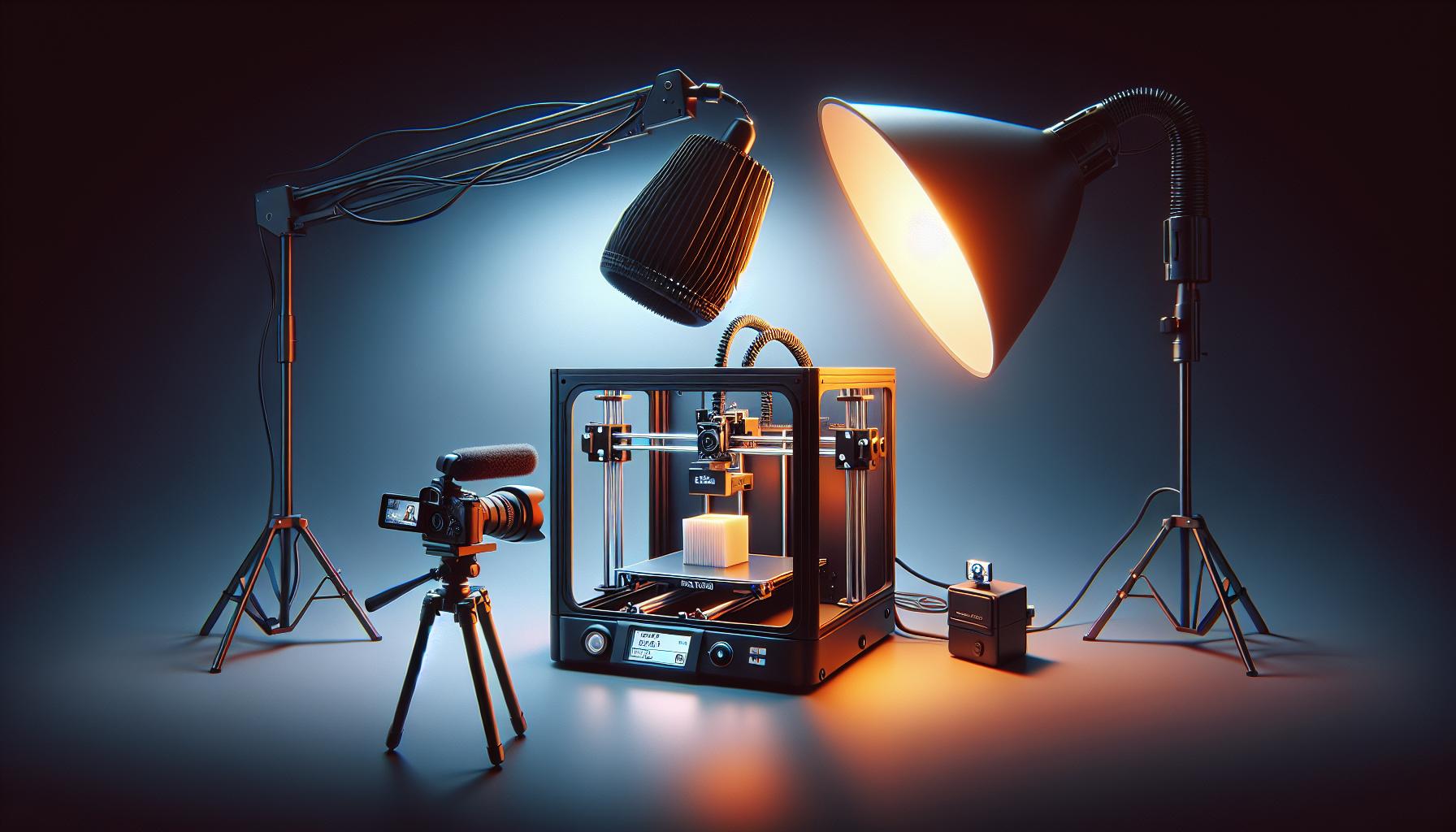
Understanding the Basics of 3D printer Timelapses
Unlocking the Magic of 3D Printer Timelapses
Creating a timelapse of your 3D printing process not only showcases the fascinating transformation of digital designs into tangible objects but also offers insights into the printing mechanics involved. By capturing every layer of the print, you can produce captivating videos that highlight the precision and intricacies of 3D printing. This visual storytelling is an excellent way to exhibit your projects,whether you’re sharing on social media,documenting your progress,or simply enjoying the mesmerizing motion of the printhead.
To effectively record your 3D printer’s timelapse, you need to select the right tools and techniques. One common method is to utilize a camera that can take snapshots at specific intervals. Many hobbyists use action cameras or webcams, which can be configured to capture images at designated times or triggered by the print head’s movements. An essential element in achieving smooth transitions in your video is to take a snapshot at each layer change. This approach ensures that the final product appears fluid and visually engaging, maintaining the viewer’s interest throughout the print process.
Here are some critical tools and considerations for anyone looking to start their journey in creating 3D printer timelapses:
- Camera Options: Consider using a webcam, action camera, or even an overhead smartphone mount.
- Software for Automation: Look into software solutions like OctoPrint that offer plugins for timelapse creation, allowing you to automate the photo capture process.
- Lighting: Ensure proper lighting of your print area to enhance visibility and detail in your final video.
- Stability: Use a stable mount for your camera to avoid shaky footage, which can detract from the viewing experience.
for those looking for hands-on guidance, various resources exist that delve deeper into the process of recording a 3D printer timelapse. For instance, blogs and tutorials offer step-by-step instructions on implementing custom code to manage camera functions precisely at each layer change, further refining the quality of the resulting video[[2]](https://blog.prusa3d.com/how-to-create-stunning-3d-print-timelapse-videos_29743/). With the right approach and tools, you can transform a simple 3D print into an engaging visual narrative, captivating an audience eager to witness the unfolding creation.
Essential Equipment for Capturing Stunning Timelapses
Capturing stunning timelapse footage of 3D printing is not just a delightful way to showcase your prints but an art form that combines creativity with technical precision. To achieve the best results, you’ll need a selection of essential equipment that complements your 3D printer setup. Let’s dive into the basic tools and techniques that will enhance your timelapse recording process.
Key Components for Timelapse Success
To create captivating timelapse videos, the right combination of hardware and software is crucial. Here’s a breakdown of the necessary equipment:
- 3D Printer: The backbone of your setup. Ensure your printer can deliver consistent quality and has features supporting full automation of the process.
- Camera: A DSLR or a high-quality smartphone camera will work best. Look for one with manual settings, allowing for consistent exposure and focus throughout the timelapse.
- Tripod or Mount: stability is key. Use a sturdy tripod or rig that keeps your camera steady during the print process. Consider modular systems, like the ultralight 3-axis motion control setups, which allow for dynamic camera angles without vibrations [[1]].
- Recording Software: software such as Octolapse or other specific timelapse tools can automate your recordings and provide seamless integration with your 3D printer to timestamp images properly.
Enhancing your recording Setup
To elevate your timelapse videos further, consider incorporating additional elements into your recording setup. Here are some recommendations:
- Lighting: Proper lighting can dramatically improve your footage clarity. Soft, diffused light from LED panels can eliminate harsh shadows and highlight intricate details.
- Settings Optimization: Set your camera to a fixed exposure, ISO, and white balance to maintain consistency across all frames of your timelapse.
- Intervalometer: This tool allows you to capture images at set intervals, helping automate the timelapse process for longer prints.
By using this essential equipment strategically, you can effectively create captivating timelapse videos that showcase the intricate process of 3D printing. Whether you are sharing on social media or creating a portfolio of your work, having the right tools in place is integral to producing high-quality content.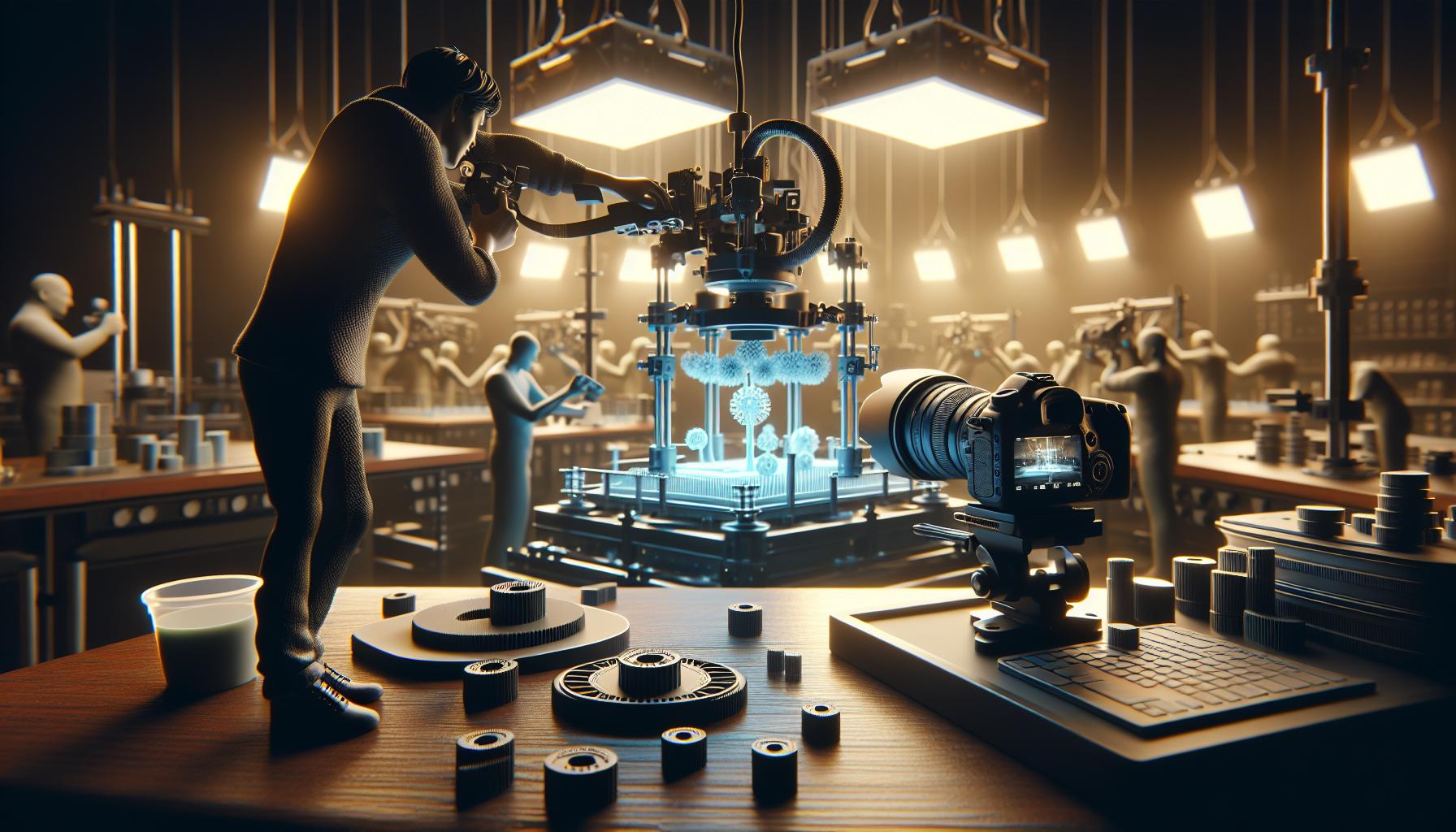
Setting Up Your 3D Printer for Optimal Recording
Maximizing Your 3D Printing Timelapse Setup
Capturing a mesmerizing timelapse of your 3D printing process hinges largely on how well you configure your printer and camera. Lighting, camera stability, and positioning are paramount to ensure that each frame of your timelapse is well-lit and properly framed. An external camera or a dedicated smartphone equipped with a quality lens can elevate your timelapse quality substantially. Consider using a tripod or a stable mount to prevent any shakes or vibrations that coudl disrupt the smoothness of your video.
When setting up your printer for optimal recording, you should consider the following aspects:
- Camera Placement: Aim to position the camera at a level that captures the entire build plate without obstruction. Ideally, the camera lens should be perpendicular to the print surface for the best angle.
- Lighting Conditions: Ensure your printing environment is well-lit. Natural lighting can work wonders,but if you rely on artificial lights,use diffusers to soften harsh shadows.
- Capture Settings: Adjust the settings of your camera for timelapse photography—this often includes setting a fixed exposure and white balance to maintain consistency across frames.
- Print Speed: for best results, choose a print speed that balances quality with timelapse length. Too fast may lead to unwanted artifacts in your video.
Utilizing Software and Tools for Efficiency
To streamline your workflow, employing software that can manage your timelapse photography is essential. Tools like AstroPrint or OctoPrint provide options for taking snapshots at intervals you set, allowing you to focus on the printing itself while the software handles the recording.For example,if your print takes about an hour,and you want a one-minute video at 30 fps,you would need to capture 1800 frames. by calculating the interval, you can determine how frequently to take photos throughout the print job [1].
| Print Time (minutes) | Required Frames | Interval (seconds) |
|---|---|---|
| 30 | 1800 | 1 |
| 60 | 1800 | 2 |
| 90 | 1800 | 3 |
Taking the time to carefully set up your 3D printer and recording equipment will pay off in the quality of your final timelapse. Engaging visuals not only enhance your presentations but also resonate better with viewers, allowing them to appreciate the intricate process of 3D printing like never before.
Techniques to Achieve smooth and Seamless Timelapse Videos
Creating stunning timelapse videos, notably of a 3D printer in action, requires some nuanced techniques to ensure that the final product is smooth and visually appealing. A well-executed timelapse captures the transformation of an object over time, and achieving seamless transitions can significantly enhance the viewer’s experience. Below are crucial methods and tips to help you master the art of recording a 3D printer timelapse effectively.
Optimizing Settings for Clarity
One of the foundational techniques to achieve high-quality timelapse footage is to meticulously adjust your camera settings. Start by locking your exposure settings; this includes the aperture, ISO, and shutter speed. Avoid automatic settings during the shoot, as variations in lighting can cause flickering in the final video. A fixed aperture helps maintain consistent depth of field, while setting a low ISO relative to your lighting conditions will minimize graininess. Consider using a lower shutter speed to allow more light, especially in darker environments.
- Use manual focus to prevent shifts during the time-lapse.
- Set your frame rate and interval: a typical setup is to take a frame every 10 seconds, which creates smooth motion over a period of hours.
Camera Stability: The Key to Smoothness
Camera stability cannot be overstated in producing seamless timelapse videos. Any vibrations or movements during shooting may lead to a jarring experience when viewed. To achieve perfect stability:
- Use a tripod: A sturdy tripod keeps the camera fixed, maintaining a constant viewpoint throughout the recording.
- Consider a rail slider: For added dynamic movement, incorporate a slider to achieve gentle pans that create more engaging visual flow.
- Minimize environmental disturbances: Ensure that the location is free from wind or other external jarring forces that might shake the camera.
Smooth Playback Techniques
Post-production plays a vital role in enhancing the smoothness of your timelapse video. You might find yourself with hundreds of frames that need to be edited down to create a coherent story. Here are some popular strategies to ensure smooth playback:
- Frame blending techniques can be used to soften transitions between frames.
- Using motion blur in editing can create an illusion of fluid movement, which is especially beneficial for fast-processing printers.
- Consider speeding up or slowing down sections of your timelapse to highlight certain features of the print process, thereby engaging viewers more effectively.
Table: Recommended Camera Settings for 3D Printer Timelapse
| Setting | Recommended Value |
|---|---|
| Aperture | f/8 – f/11 |
| ISO | 100 – 400 |
| Shutter Speed | 1/30 to 1/60 seconds |
| Frame Interval | 10 seconds |
| Focus Mode | Manual |
By embracing these techniques for achieving smooth and seamless timelapse videos,you will be well on your way to creating captivating content that showcases the intricacies of 3D printing. Whether you are new to timelapse filming or looking to refine your approach, these guidelines will ensure your final product is both professional and engaging.
Choosing the Right Camera: DSLR vs. Smartphone
When it comes to capturing the intricate details of a 3D printer timelapse, the choice of camera can significantly influence the final result. While the crisp image quality and versatility of DSLRs have long made them a top choice among photographers, the convenience and advanced technology of smartphones have made them a formidable contender. Understanding the strengths and limitations of each can definitely help you decide which is right for your project.
DSLR cameras: The Powerhouse
DSLRs (Digital Single-Lens Reflex cameras) offer an array of features that make them ideal for serious photography tasks including timelapse recording.Here are some advantages:
- Image Quality: Larger sensors in DSLRs generally produce higher quality images with better dynamic range and less noise in low light conditions.
- Interchangeable Lenses: The ability to use different lenses allows for more creative flexibility, enabling you to choose the perfect lens for detailed close-ups or wide shots.
- Manual Controls: DSLRs provide extensive manual settings for exposure, aperture, and shutter speed, giving you precise control over your images.
However, thay come with some drawbacks, such as being bulkier and requiring more setup time to get started. For anyone serious about quality and control, particularly in varied lighting conditions that can occur during a lengthy 3D print, a DSLR can ultimately yield professional results.
Smartphones: The All-in-One Solution
Conversely, smartphones have evolved dramatically, becoming user-pleasant alternatives for timelapse photography. Here are their key benefits:
- Portability: Smartphones are compact and easy to set up,making them ideal if you need to reposition your camera frequently.
- smart Features: Many smartphones come equipped with features like HDR, image stabilization, and high-resolution video, which can enhance timelapse recordings.
- Instant Sharing: With most smartphones, the ability to edit and share images or videos directly from the device streamlines the post-production process.
While smartphones may not match the raw power of a DSLR, they can produce high-quality results for casual users or hobbyists who prioritize convenience.
Making the Decision
Ultimately, the best camera for recording a 3D printer timelapse depends on your specific needs and how you value quality versus convenience.
| Feature | DSLR | Smartphone |
|---|---|---|
| Image Quality | Superior quality with larger sensors | high quality, but may struggle in low light |
| Portability | Less portable, heavier | Highly portable, easy to carry |
| Manual control | Extensive manual controls | Limited manual options |
| Smart Features | Varies by model | Integrated features for quick edits and sharing |
Consider what aspects of your 3D printing timelapse project are most critical: Is it detail and quality, or are you looking for ease and immediacy? By evaluating your priorities, you can make a more informed decision on whether a DSLR or smartphone will best meet your needs in capturing the mesmerizing process of 3D printing.
lighting Considerations for Your 3D Printer Timelapse
Creating stunning timelapses of your 3D printing projects requires more than just a good camera; the right lighting can dramatically enhance the visual appeal of your videos. When undertaking the journey of “How to Record a 3D Printer Timelapse: Tools and Techniques,” lighting is a crucial element that can make or break your final output. Poor lighting can lead to shadowy images, while well-distributed light can showcase the fine details of the print as it evolves.
Understanding Light Quality
The quality of light can significantly affect the outcome of your timelapse recordings. Consistent and soft lighting helps to reduce harsh shadows and highlights, ensuring every layer is visible. Here are some essential considerations for achieving optimal light quality:
- Color Temperature: choose lights with a consistent color temperature (around 5000K to 6500K) to mimic natural daylight. This helps in maintaining color accuracy in the video.
- Diffusion: Employ diffusion materials such as softboxes or lampshades to soften the light. Soft diffusion creates an even spread and minimizes glare.
- Uniform Placement: Position lights strategically around the printer to avoid creating shadows. A common setup includes two lights placed at 45-degree angles and one overhead light for added brightness.
Lighting Techniques for Timelapse Success
When delving into practical methods for integrating lighting into your timelapse setup,consider using a light rig that can offer both stability and versatility. For instance, DIY light rigs can be tailored to your specific printer setup, enhancing the aesthetics of your prints. One approach discussed in a tutorial from Kitronik involves building a light rig designed to optimize illumination while minimizing the appearance of flicker in the video, thus ensuring smooth playback [[3](https://kitronik.co.uk/blogs/resources/light-rig-for-time-lapse-3d-prints?srsltid=AfmBOoqySlNRcDQuJr_SflASQvnCx1dOswfQ_J52IHRJloS4gNM9U-Vs)].
Additionally, using LED strips with adjustable brightness can be quite effective. Not only can they twinkle without developing heat, but their flexibility also allows for creative placements to achieve the desired effect. Timing the LED lighting based on the print speed and layer height can also help in capturing finer details, creating a visually arresting timelapse that captivates viewers.
Common Lighting Solutions
To further enhance your experience on “How to Record a 3D Printer Timelapse: Tools and Techniques,” consider these commonly used lighting solutions:
| Lighting Type | Benefits |
|---|---|
| LED Panels | Highly adjustable, energy-efficient, and capable of providing even illumination. |
| Softboxes | Diffuses light effectively; ideal for creating soft shadows. |
| Ring Lights | Consistent light, great for close-ups, enhances details without harsh shadows. |
By considering these factors and implementing effective lighting strategies into your 3D printing timelapse recordings, you will elevate your resulting videos significantly. Ensure that your lighting setup is tailor-made to your environment, accommodating for any natural light variations, and always verify that the camera settings are correctly adjusted to match the lighting conditions.
Software Solutions for Editing and Enhancing Your Footage
Transforming Your Timelapse Footage
Capturing a timelapse of your 3D printing process can produce stunning visuals, but the real magic happens in the editing phase. With the right software solutions, you can enhance your footage to create captivating stories that showcase your printing projects. Whether you’re aiming for a clean,professional look or a more dynamic presentation,there are various tools available that cater to all levels of expertise.
Essential Software options
To edit and enhance your timelapse footage, consider these popular software solutions:
- adobe Premiere Pro: A professional-grade video editing tool that offers a wide range of features for color correction, transitions, and effects. Perfect for serious creators who need advanced capabilities.
- DaVinci Resolve: This software is known for its powerful color grading tools and is available for free,making it accessible for beginners. It can elevate your footage significantly with its intuitive interface.
- final Cut Pro: Ideal for Mac users, this software combines professional editing features with an easy-to-use interface, perfect for streamlining your editing process.
- iMovie: For those just starting out, iMovie is an excellent choice for basic editing. It allows you to quickly cut, enhance, and share your timelapse videos.
Tips for Effective Editing
when editing your 3D printer timelapse footage, follow these actionable tips to improve the final output:
| Editing Tip | Description |
|---|---|
| Trim Needless Footage | Remove any parts of the video where the printer is inactive to maintain viewer engagement. |
| Add Background Music | Choose a fitting soundtrack to enhance the emotional impact of your video. |
| Incorporate Text Overlays | Provide context or explain key steps in your printing process with text overlays. |
| Experiment with Speed | Adjust the playback speed to highlight specific details or to create dramatic effects. |
By utilizing these software solutions and tips, you can turn your raw timelapse captures into polished, professional-looking videos that effectively showcase the intricacies of your 3D printing projects.Engaging visuals not only draw viewers in but also promote your work, making the editing process an essential step in your journey of learning how to record a 3D printer timelapse.
Troubleshooting Common Issues in timelapse Recording
Creating stunning timelapse videos of your 3D printing process can be a rewarding experience, but it’s not uncommon to encounter a few hiccups along the way. Understanding the common issues that may arise during the recording process is crucial to ensuring your timelapse captures the magic from start to finish. Here are some frequent challenges faced by creators, along with practical solutions.
- Recording Errors: Sometimes the timelapse fails to record properly due to software glitches or insufficient memory.Ensuring that your recording software is updated and that your storage has ample space can alleviate this issue. For instance, restarting your recording software can resolve temporary glitches and free up resources for smoother operation [[2]].
- Inconsistent Frame Rates: A common frustration is experiencing inconsistent frame rates in your final product. This can frequently enough be attributed to using a camera or software that isn’t optimized for timelapse recording. To counteract this, make sure your camera settings are configured correctly and that you’re using a reliable recording solution. If your software allows, adjust the frame rate settings before starting the recording.
- Video Length and Playback Speed: Sometimes, the resulting video might potentially be longer than anticipated, which can be a result of too many collected frames or slow processing speed. Keep track of how many shots you plan to take, and employ a consistent interval that aligns with your project’s goals. If reducing overall playback length is needed post-production, consider editing and cutting segments that are less visually impactful.
Technical Adjustments
If you’re using software that captures timelapse footage,you might also experience issues with not capturing certain layers or actions. For example, certain applications may not register specific actions like toggling layers on various editing classes. Restarting the submission and revisiting your settings can sometimes ensure that all layers and actions are adequately documented [[3]].
Lastly, always perform a test run before capturing your final timelapse. Check for factors like lighting, framing, and camera stability. A quick test can frequently enough reveal these problems before they impact your significant project. These practical troubleshooting steps will enhance your experience in recording a flawless timelapse, culminating in a stunning showcase of your 3D printing journey.
Tips for showcasing Your 3D Prints in a Compelling Narrative
crafting a Narration Around your 3D Prints
Engaging your audience isn’t just about showing them a stunning model; it’s about telling a story that connects them emotionally with your creation.A thoughtfully crafted narrative can elevate the impact of your 3D prints, making them memorable and sharing the journey behind each design. when recording a timelapse using the techniques from “how to Record a 3D Printer Timelapse: Tools and Techniques,” consider the broader context of your project—why did you choose this model,what challenges did you face during the printing process,and how did you overcome them?
To help you weave a compelling story,consider these elements:
- Background Details: Offer insights into the inspiration behind your design. Was it a personal project, a gift, or perhaps a solution to a problem? This establishes a connection with viewers.
- Process insights: use the timelapse to highlight crucial moments in the printing process. Discuss any adjustments you had to make, materials you experimented with, or how you optimized for specific details.
- Visual and Emotional Appeal: Focus on the aesthetic aspects of your print. consider the colors, textures, and the final finish. Invite your audience to experience the print by discussing how light interacts with its surfaces, making it visually striking.
Creating Engagement Through Multimedia
Incorporate various media types to enrich your storytelling. Use snippets from your timelapse alongside commentary to explain complex parts of the printing process. As a notable example, as layers are being deposited, you might discuss the choice of filament, such as PLA versus ABS, and why it’s relevant to your print’s purpose. Additionally, including close-up shots of finished details can enhance viewer appreciation for the technical intricacies involved.
| Filament Type | Best Use Case | Common Challenges |
|---|---|---|
| PLA | General use, prototypes | Lower heat resistance |
| ABS | Functional parts, toys | Requires enclosure for best results |
| TPU | Flexible parts | Requires careful printer setup |
Ultimately, your goal is to create an experience that resonates. By merging your technique for recording a timelapse with a rich narrative, you will not only showcase your 3D prints effectively but also captivate your audience’s attention and creativity.
Real-World Examples: Learning from Successful Timelapse Creators
Innovative Techniques from Timelapse Masters
creating captivating time-lapse videos of your 3D printing projects not only showcases your results but also offers insight into the intricacies of the printing process itself.Many successful content creators have shared their methods, inspiring others to innovate their own approaches. As an example, a popular YouTube tutorial demonstrates how to utilize specific plugins in Cura, a widely used slicing software, to enhance time-lapse quality and control timing precisely during prints. This method allows users to intervene at various stages for optimal footage, making the final result more visually appealing and engaging to viewers [[1](https://www.youtube.com/watch?v=ZQxx4ezgnQs)].
Moreover, a thorough guide published on Creality Cloud presents a variety of tools and techniques for creating stunning 3D printer time-lapse videos. This guide emphasizes the importance of both the hardware setup and the editing process post-printing. Users are encouraged to employ affordable cameras that can automatically capture images at intervals, leading to a seamless video compilation. The advice to choose backgrounds that minimize visual distractions can significantly enhance the overall quality of the final output [[2](https://www.crealitycloud.com/blog/tutorials/3d-printing-time-lapse)].
Learning Through Experimentation
Experimentation remains a key theme among successful timelapse creators.A notable example highlighted in a YouTube video entails an experiment with different camera angles and settings to discover which combinations yield the best results.This trial-and-error approach led to the revelation of various perspectives that made the prints more dynamic.Many creators suggest documenting these experiments, as this not only allows for optimization in future projects but also provides informative content that can benefit fellow enthusiasts [[3](https://www.youtube.com/watch?v=1w-z_vPZlbo)].
| Creator | Technique | Outcome |
|---|---|---|
| 3D Printing YouTuber | Utilized Cura plugins for time-lapse | Enhanced video quality and viewer engagement |
| Creality Cloud Guide | Recommended affordable automatic cameras | Improved capturing efficiency and reduced manual effort |
| A1 Mini Experimenter | Tested various camera angles | Discovered optimal perspectives for dynamic visuals |
These real-world examples highlight the diverse strategies utilized by successful creators in the realm of 3D printing time-lapses. By learning from their experiences and approaches, you can refine your techniques and ultimately enhance your content for both personal satisfaction and audience engagement.
Q&A
How to Record a 3D Printer Timelapse: Tools and Techniques?
To record a 3D printer timelapse, you’ll need a camera, suitable software, and a stable mount. Using software like OctoPrint paired with a Raspberry Pi allows you to automate the process, while a webcam or DSLR can capture the print. This combination ensures you get smooth, quality footage.
using tools such as Octolapse with OctoPrint can enhance the quality of your timelapse videos.Ensure your camera is set up securely to avoid shaking, and select an appropriate frame rate that maintains the integrity of the print process. Learn more about the different setups in our guide on capturing prints.
What is the best camera for recording a 3D printer timelapse?
the best camera for recording a 3D printer timelapse is often a webcam or DSLR, depending on your budget and quality expectations. Webcams are affordable and easy to set up, while DSLRs allow higher image quality and manual adjustments.
For hobbyists, a simple USB webcam can suffice, such as the Logitech C920. For professional quality, consider using a DSLR with a sturdy tripod. This choice enhances your footage by allowing you to adjust focus and exposure accurately.
Why does my 3D printer timelapse video look shaky?
Shaky timelapse videos are frequently enough due to an unstable camera mount or vibrations from the printer. To avoid this, ensure your camera is securely mounted on a stable surface.
Use a sturdy tripod or a fixed mount attached to the printer frame. Additionally, consider using a fast shutter speed to capture clear frames, preventing motion blur. Proper lighting also helps improve video quality.
Can I use my smartphone to record a 3D printer timelapse?
Yes, you can use your smartphone to record a 3D printer timelapse. Many smartphones have sufficient camera capabilities and can capture high-quality video.
To do this effectively,mount your smartphone securely and ensure it has a clear view of the printer. utilize free or affordable apps that can help you convert your video into a timelapse. just ensure your phone stays charged throughout the print.
How do I edit my 3D printer timelapse video?
Editing a 3D printer timelapse video can be done using software like Adobe Premiere Pro, iMovie, or free options like Shotcut. Begin by importing your footage and adjusting the speed to create the timelapse effect.
You can also add music, transitions, and text overlays to enhance the presentation. many editing programs allow you to split clips, trim unnecessary footage, and adjust colors to make your video more engaging for viewers.
What settings should I use for my timelapse video?
Optimizing settings for your timelapse video involves selecting the right frame rate and resolution. A common frame rate is 24 or 30 frames per second, while a resolution of 1080p provides a good balance between quality and file size.
Adjust your camera settings to achieve a suitable exposure and prevent overexposure. Regularly check the camera’s focus, especially if it moves during printing. Consider experimenting with different settings to find what works best for your specific printer and print type.
What software should I use for 3D printer timelapse capture?
Popular software options for capturing 3D printer timelapses include OctoPrint, with its Octolapse plugin, and Raspberry Pi camera setups. These tools allow for automated captures and live streaming, significantly easing the recording process.
For beginners, OctoPrint is user-friendly and highly customizable, while experienced users might prefer options like Repetier-Host or even direct camera recording software. Evaluate your needs to choose the best software that integrates with your 3D printer.
The Conclusion
capturing mesmerizing timelapse videos of your 3D printing projects is not only a rewarding endeavor but also a fantastic way to showcase your creativity. By selecting the right tools—such as cameras with intervalometers, utilizing software like Slic3r PE for layer-based captures, and employing proper lighting and backgrounds—you can significantly enhance the quality of your footage.Remember to follow step-by-step instructions that detail the setup process, from camera positioning to coding your slicer for efficient image capturing. Real-world examples abound, demonstrating how enthusiasts have transformed their printing experiences through expertly crafted timelapses.
As you embark on this exciting journey, don’t hesitate to explore further—join 3D printing communities, watch tutorial videos, and share your creations. Each timelapse is more than just a video; it’s a story of innovation and skill.Your next masterpiece awaits!
Get our latest guides, news, and insights highlighted in your Google Search & AI Overviews.


