
✨ This article was AI edited. Editorial responsibility: 3D-P.eu.
Produced with AI. This article was artificially generated. Editorial responsibility: 3D-P.eu.
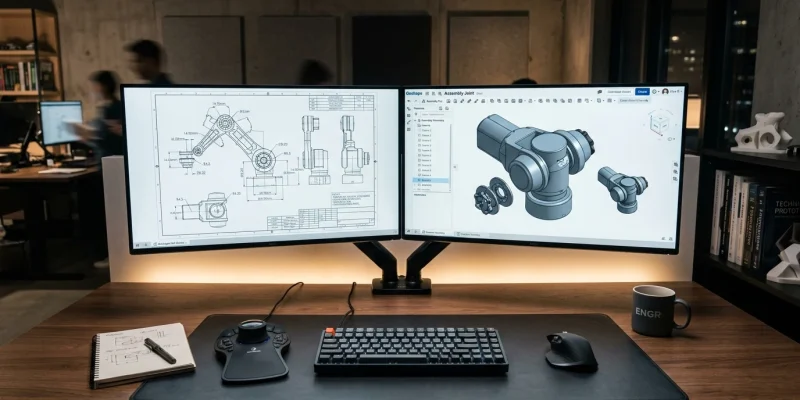
Engineers, makers, and CNC machinists frequently ask whether modern cloud-based CAD software like PTC Onshape can replace standalone 2D drafting packages such as AutoCAD, DraftSight, or LibreCAD. While legacy 2D CAD packages operate on direct vector drafting (lines, arcs, and polylines without underlying 3D mass), Onshape approaches 2D drafting through modern parametric intelligence.
In this comprehensive guide, we examine how to use Onshape for 2D CAD projects, the differences between 2D sketching and engineering drawings, how to export production-ready DXF/DWG files, and where standalone 2D tools might still be necessary.
Onshape 2D Capabilities: Two Distinct Workflows
To use Onshape effectively for 2D design tasks, it is critical to distinguish between its two 2D environments:
| Feature & Workflow | Primary Use Case | Key Tools Available | Export Formats |
|---|---|---|---|
| 2D Sketching Environment | Laser cutting, waterjet machining, plasma cutting, CNC router profiling | Coincident, Parallel, Tangent, Dimensions, Splines, Offsets, Patterning | DXF, DWG |
| Onshape Drawings Environment | Formal manufacturing prints, fabrication blueprints, assembly documentation | Orthographic projections, Detail views, Section views, GD&T, Callouts, BOM | PDF, DXF, DWG, DWT |
Workflow 1: 2D Sketching for Direct Manufacturing (Laser / CNC / Waterjet)
If your goal is to design flat 2D profiles?such as sheet metal brackets, acrylic enclosures, gasket profiles, or CNC wood cutouts?Onshape’s sketch engine is exceptionally powerful and faster than traditional non-parametric 2D drafting software.
Step-by-Step 2D Profile Creation
- Create a Part Studio: Start a new document and open a default Part Studio. Select the Top or Front plane and press
Shift + Sto open a new Sketch. PressNto orient normal to the sketch plane. - Draft Your Geometry: Use the Line (
L), Rectangle (G), Circle (C), and Arc (A) tools to sketch the rough perimeter of your component. - Apply Parametric Constraints: Unlike dumb vector drafting where you must calculate coordinate positions manually, apply geometric rules:
- Coincident / Tangent: Lock line endpoints to arcs seamlessly.
- Symmetry: Mirror complex geometries across a construction centerline (
Q). - Equal: Force multiple hole diameters or slot widths to stay identical.
- Drive with Dimensions (
D): Add driving dimensional tolerances. When every sketch entity turns black, the sketch is fully defined and mathematically constrained. - Export Directly to DXF/DWG: Right-click the sketch in the left feature tree, select Export as DXF/DWG, choose Release 14 or 2018 DXF, set units to Millimeters or Inches (matching your CAM software), and download the vector file instantly.
Workflow 2: Production Engineering Drawings (Blueprints & GD&T)
When you require traditional multi-view orthographic blueprints with title blocks, revision histories, and GD&T (Geometric Dimensioning and Tolerancing) annotations for shop-floor fabrication, Onshape includes a dedicated ANSI/ISO Drawing workspace.
Key Features of Onshape Drawings
- Standard Sheet Templates: Support for standard engineering sheet sizes (ANSI A through E, ISO A4 through A0) with customizable company title blocks and border zones.
- Automated Projections: Place a base view and instantly drag to create standard 3-view first-angle or third-angle projections, isometric isometric cutouts, and auxiliary projection planes.
- Section & Detail Views: Cut stepped section lines through complex internal geometry or create magnified circular detail views with automatic scale notations.
- Bill of Materials (BOM) Integration: If your 2D print represents a multi-part assembly, Onshape automatically inserts associative BOM tables that update dynamically when part quantities or materials change.
Importing Existing 2D DXF & DWG Files into Onshape
Many machine shops and fabrication bureaus possess massive legacy archives of AutoCAD .dwg and .dxf files. Onshape allows seamless round-trip ingestion:
- Importing to a Part Studio: Click the
+button at the bottom left of your document and select Import. Once uploaded, open a sketch plane, click the Insert DXF/DWG tool on the toolbar, and select your file. The 2D vectors appear directly on your sketch plane ready for extrusion, editing, or measurement. - Importing to a Drawing Tab: You can open native DWG drawings directly inside Onshape to view, measure, and annotate legacy customer prints without requiring a desktop AutoCAD license.
When Should You NOT Use Onshape for 2D CAD?
While Onshape excels at mechanical 2D sketching and engineering drafting, certain specialized 2D domains are better served by dedicated purpose-built software:
- Architectural Floor Plans: Onshape is not optimized for civil architectural drafting, multi-story wall schedules, or building floor plans (where tools like Revit or AutoCAD Architecture dominate).
- Electrical Schematics & PCB Layout: For 2D electrical wiring harnesses and circuit schematics, specialized ECAD suites like KiCad or Altium Designer are required.
- Artistic Vector Graphics: For decorative vinyl signage, typography manipulation, and fluid logo design, Illustrator or Inkscape offer superior bezier curve artistic styling.
Frequently Asked Questions
Is Onshape free for 2D CAD drafting?
Yes. The Onshape Free plan provides full access to all 2D sketching and 2D drawing tools with cloud storage, provided all public documents remain open-source. For proprietary commercial work, an Onshape Standard or Professional subscription is required.
Can I export 1:1 scale DXF files for laser cutting from Onshape?
Yes. Right-clicking any sketch plane or flat part surface and choosing “Export as DXF/DWG” generates a perfectly scaled 1:1 vector file compatible with LightBurn, Fusion 360 CAM, SheetCAM, and all CNC laser controllers.
Can Onshape convert 2D drawings into 3D models?
Yes. By importing a 2D DXF into a sketch, you can immediately use the Extrude, Revolve, or Loft features to transform flat 2D geometry into fully realized 3D solids in seconds.
Get our latest guides, news, and insights highlighted in your Google Search & AI Overviews.


